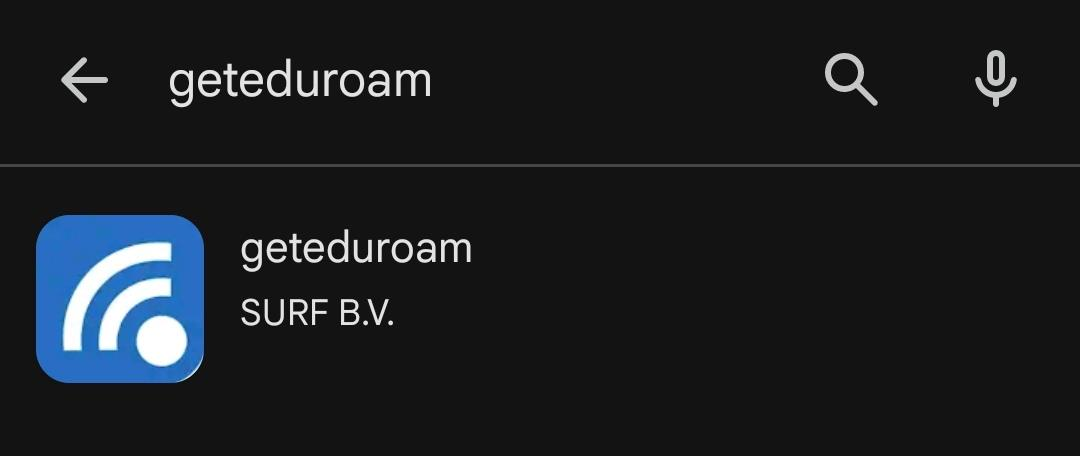
Open the Google Play Store.
Search for “eduroam CAT” or “geteduroam”
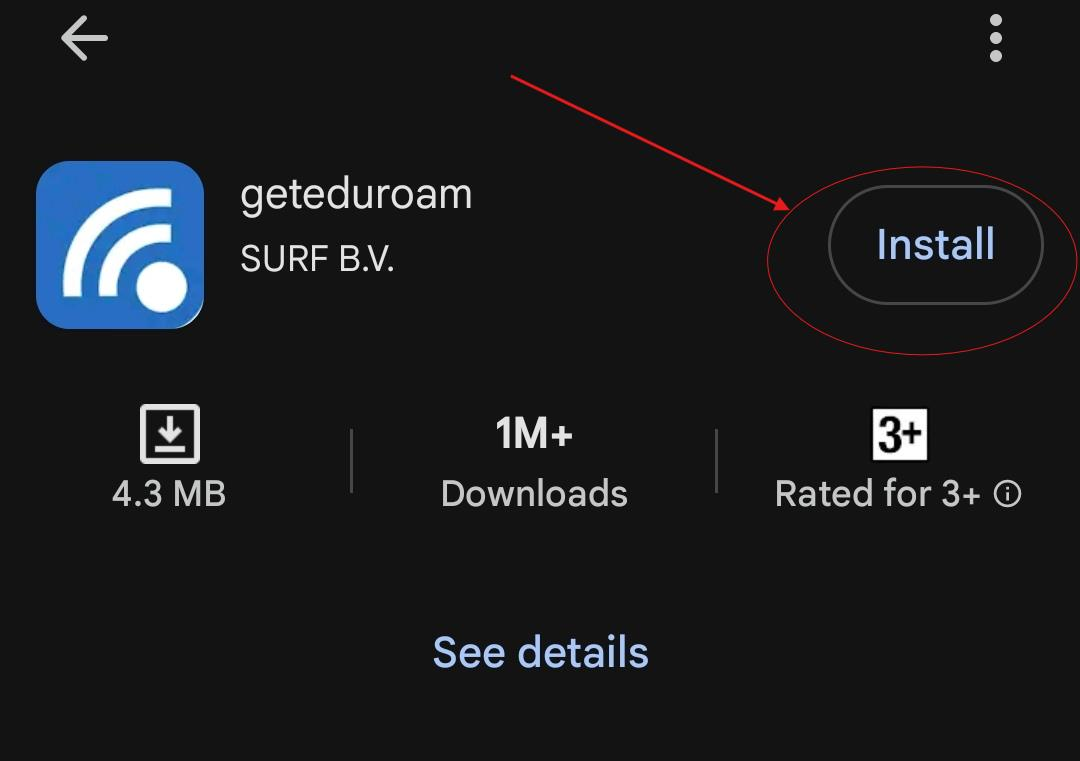
Download and install the app.
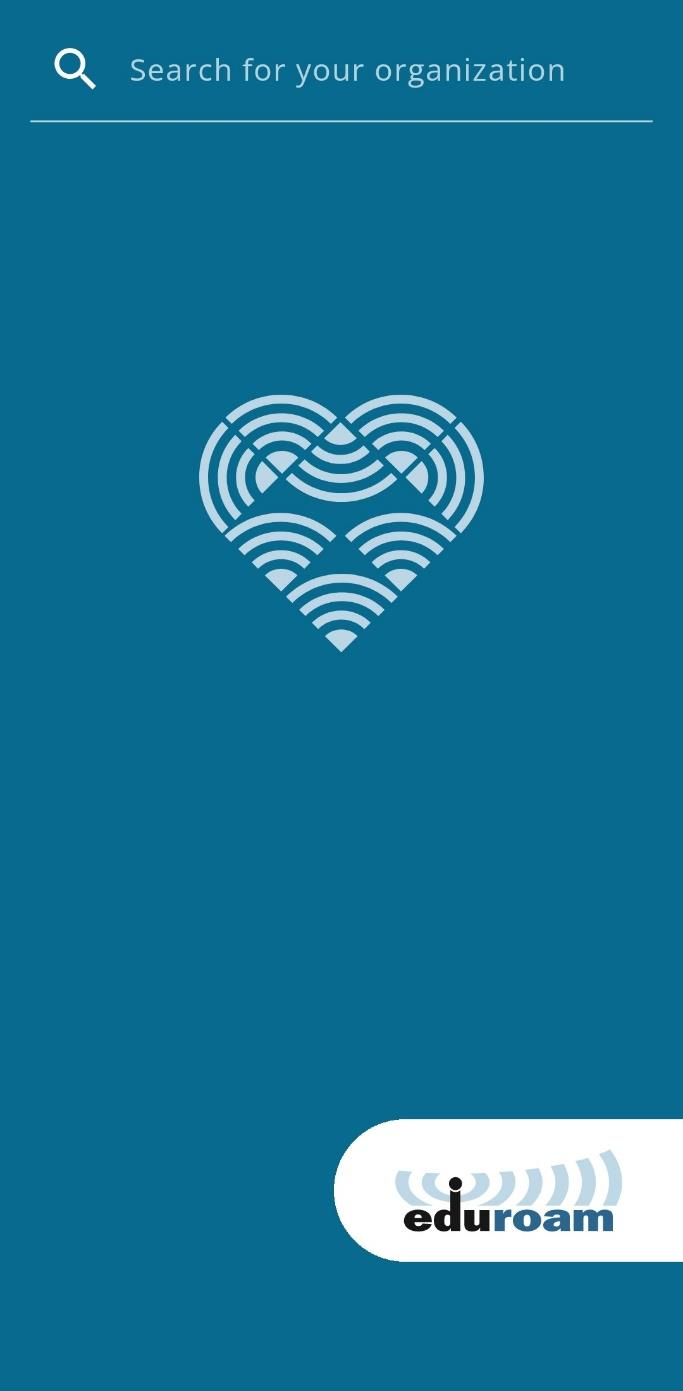
Launch the eduroam CAT app on your phone

Locate the search field and type the full name of the university (University of Environment and Sustainable Development)
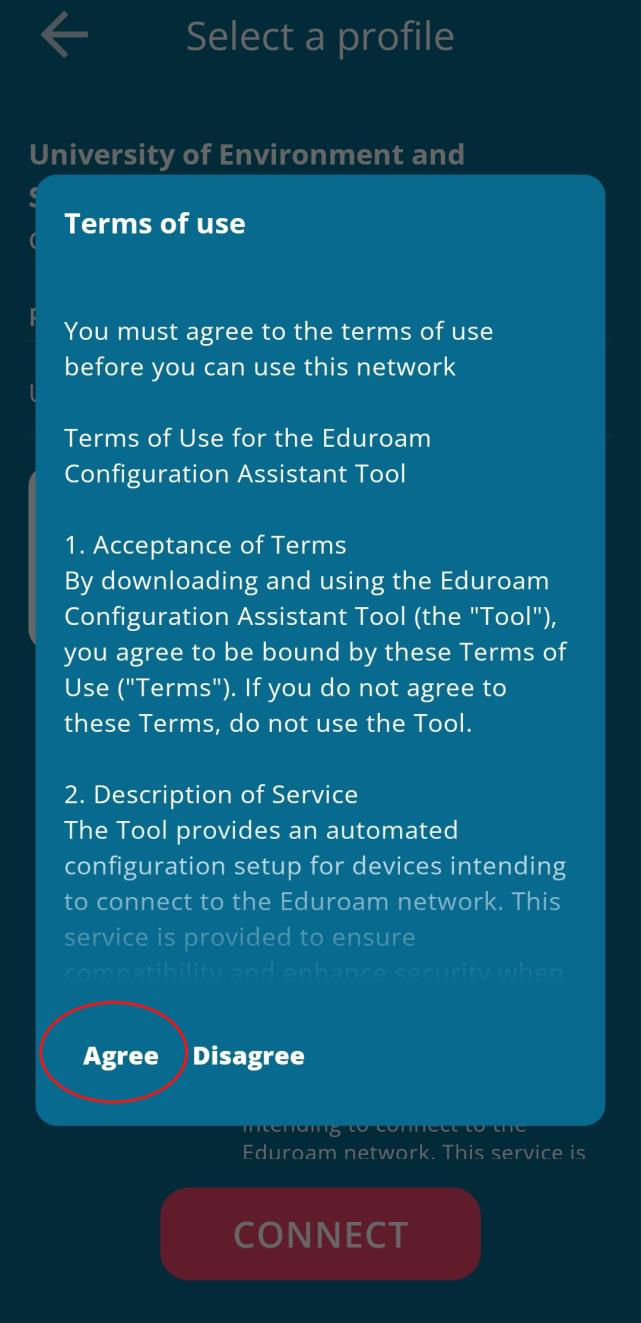
From the Search Result, tab on the university name and accept the Agreement. When prompted:
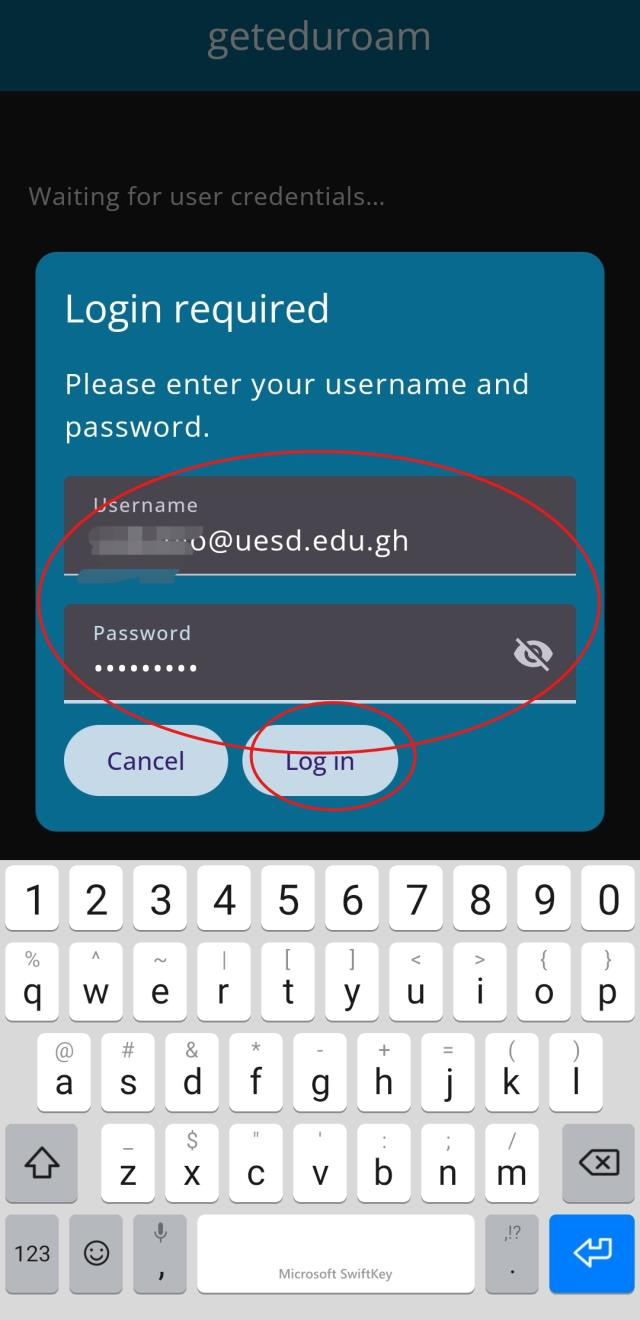
Enter your username (e.g., username@uesd.edu.gh)
Enter your password followed by Log in
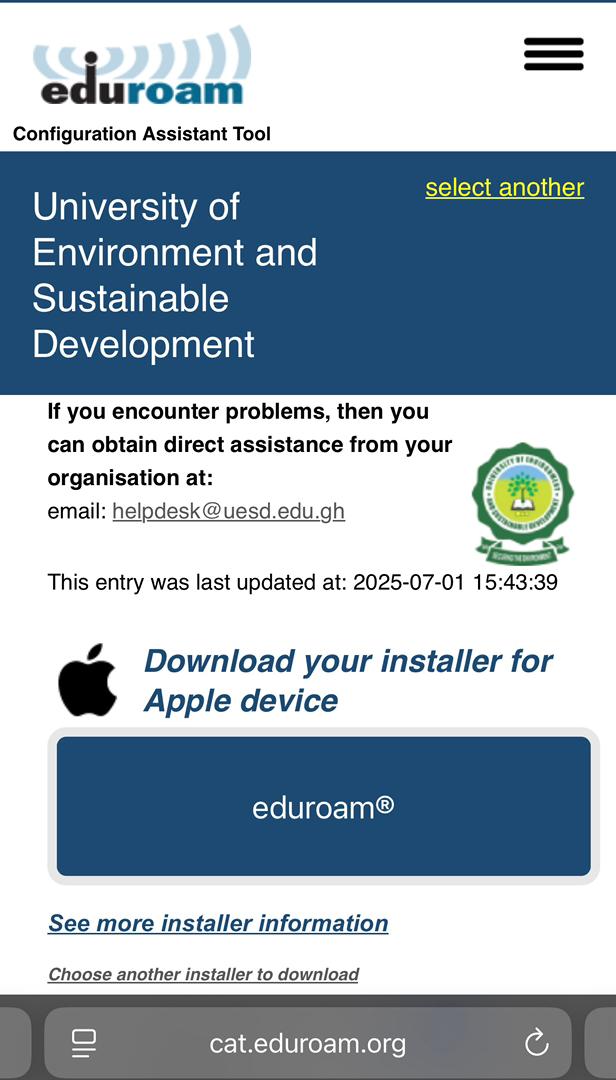
Open Safari or any browser on your iPhone or IOS Device. Go to: https://cat.eduroam.org Tap “Click here to download your EDUROAM installer”.

Search for the university name (University Environment and Sustainable Development) Tap the university Name once it appears.
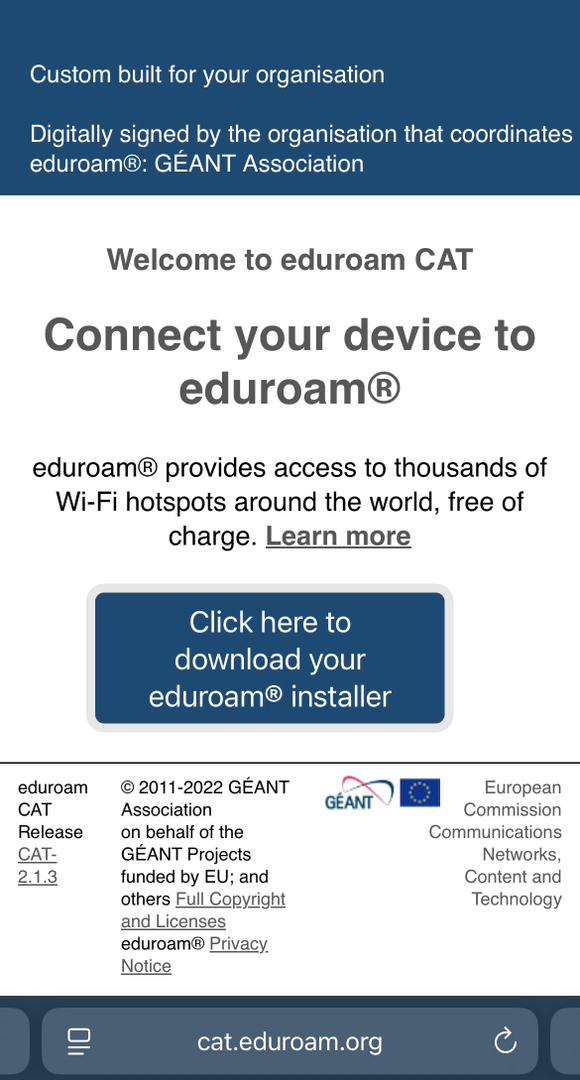
Tap the iOS download option to install the Profile
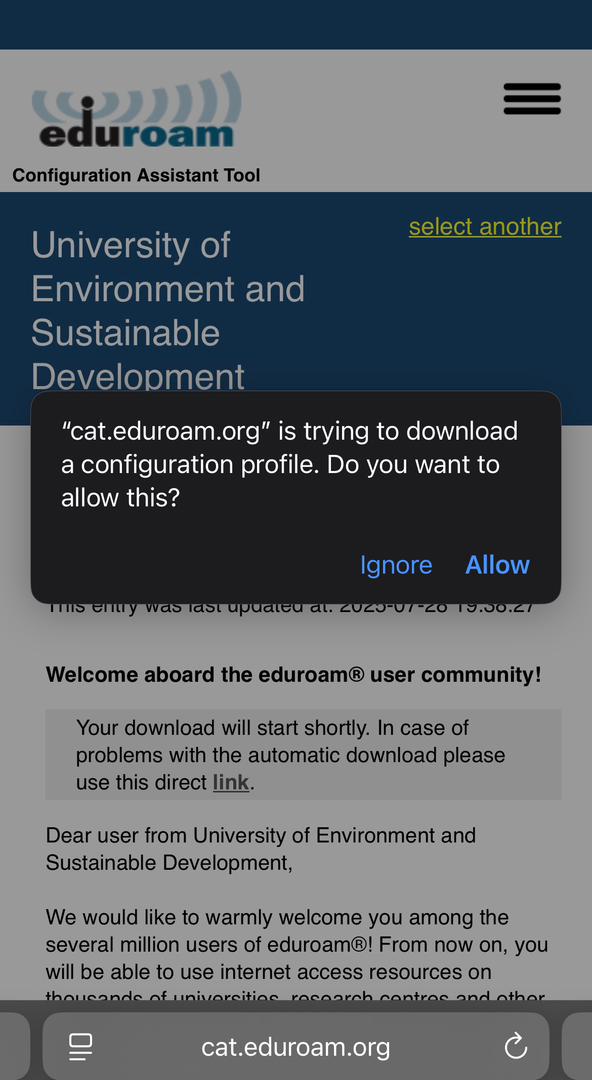
Tap Trust if prompted to accept the security certificate

Tap Trust if prompted to accept the security certificate
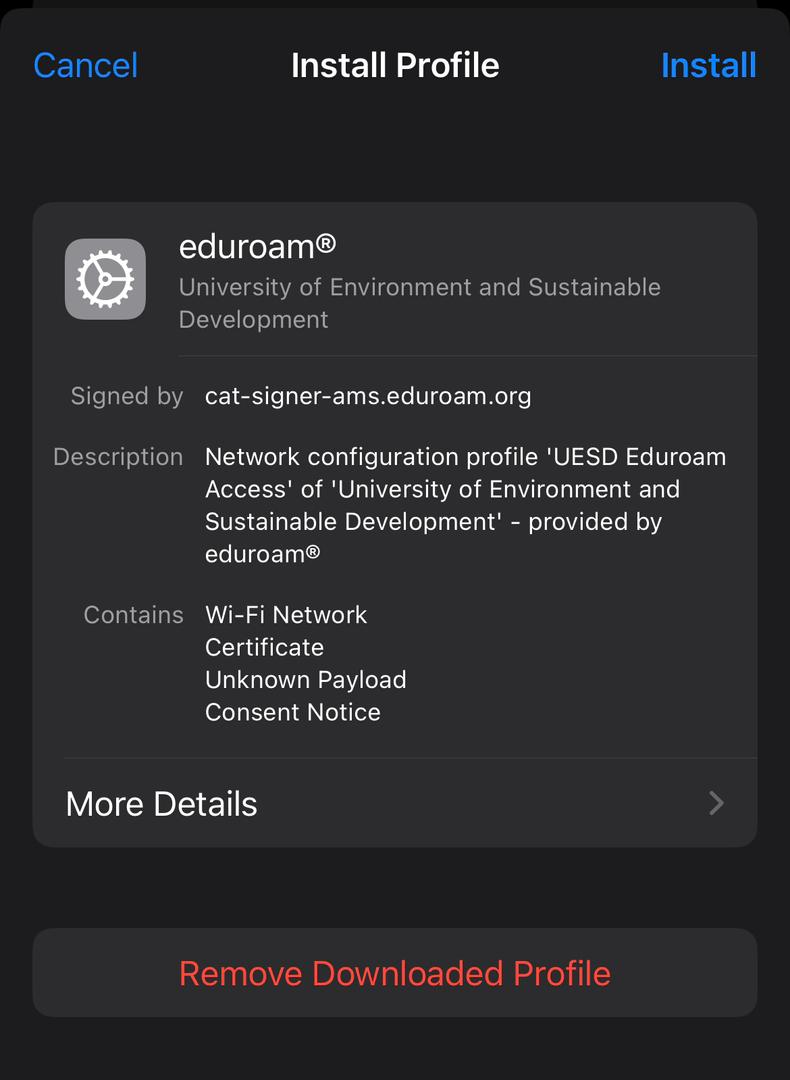
Tap Trust if prompted to accept the security certificate
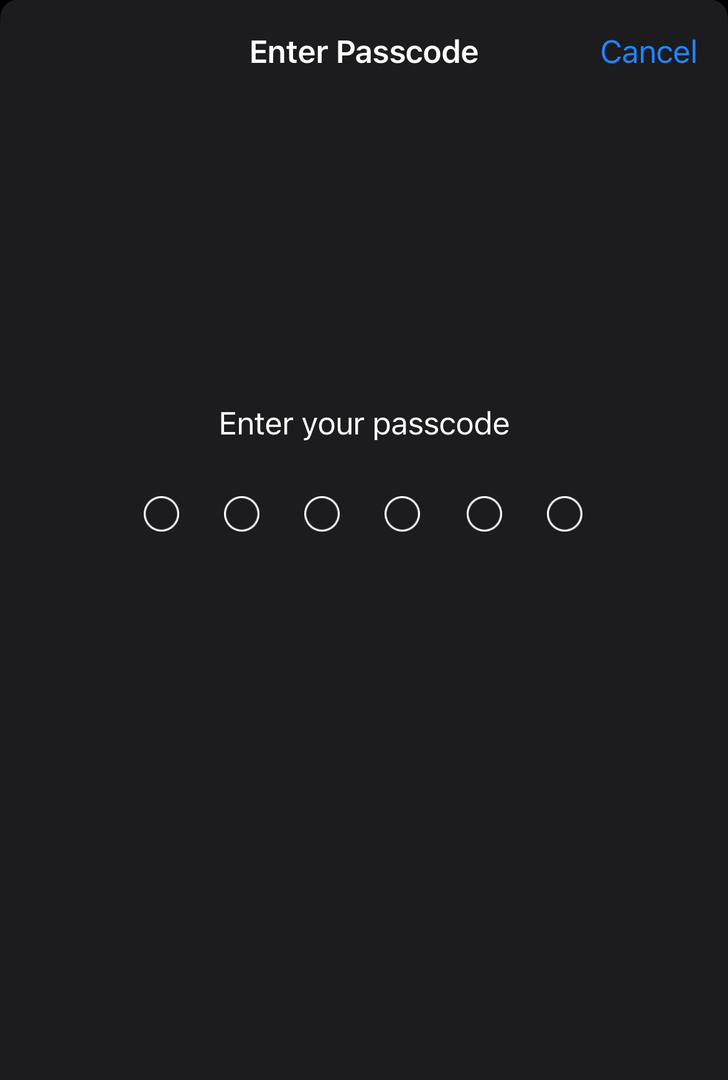
Tap Trust if prompted to accept the security certificate
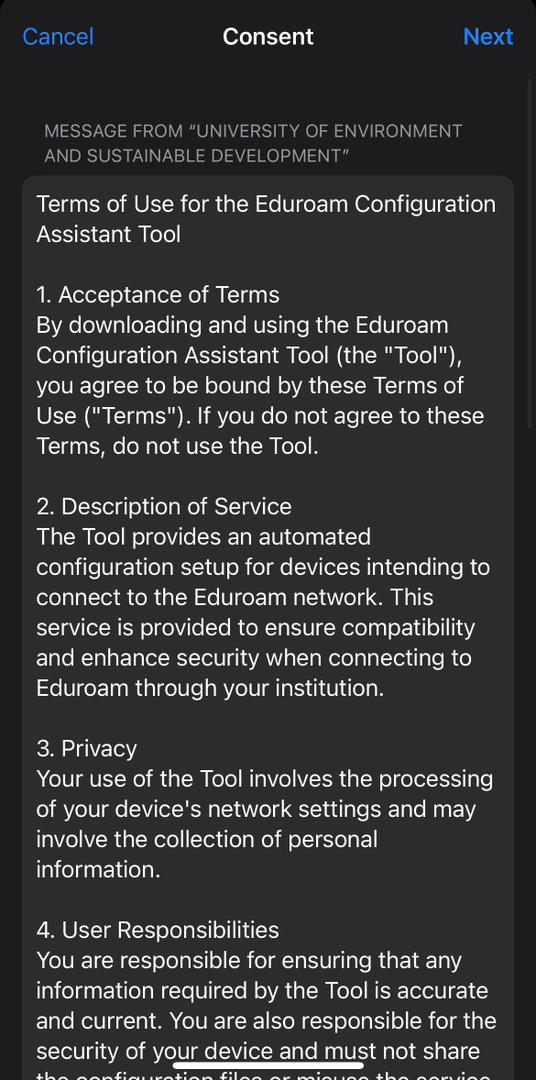
Tap Trust if prompted to accept the security certificate
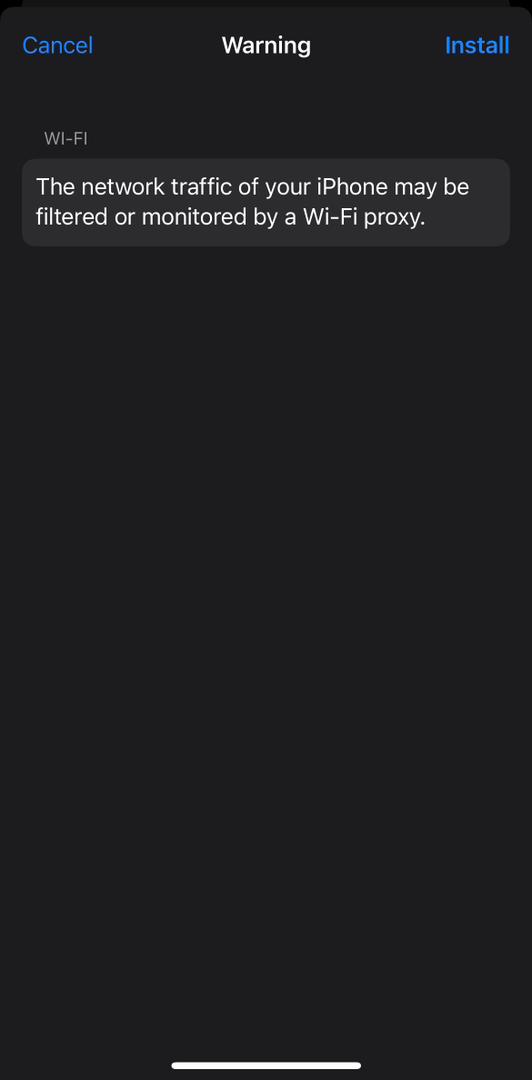
Tap Trust if prompted to accept the security certificate
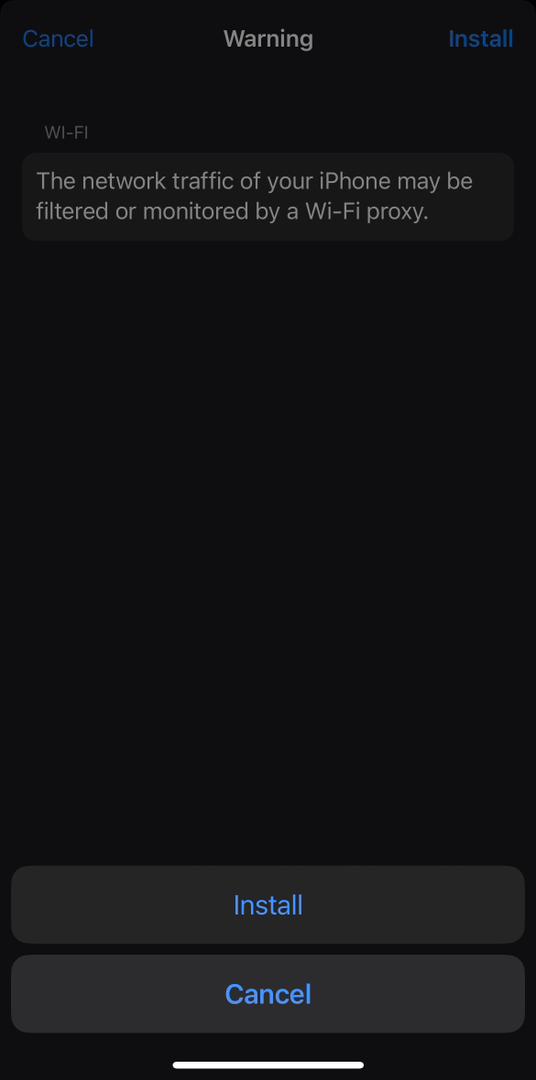
Tap Trust if prompted to accept the security certificate
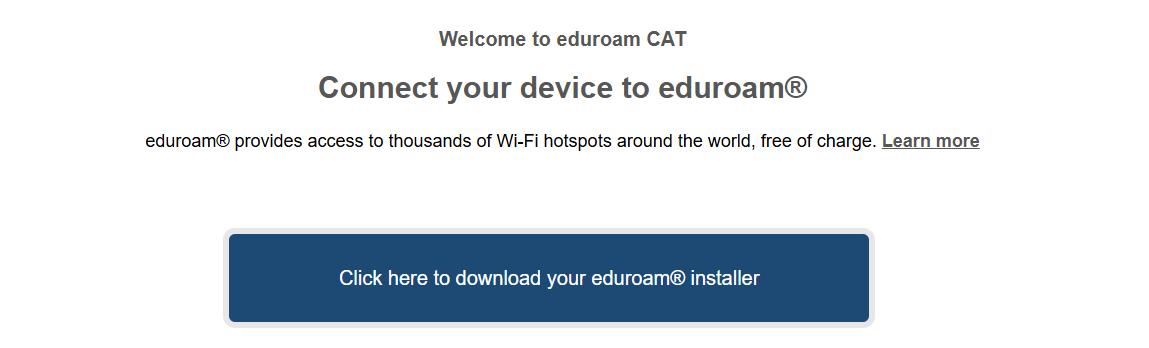
Open any browser (Edge, Chrome, Firefox).
Go to (Enter the URL) in your browser: https://cat.eduroam.org
Click “Click here to download your eduroam installer”.
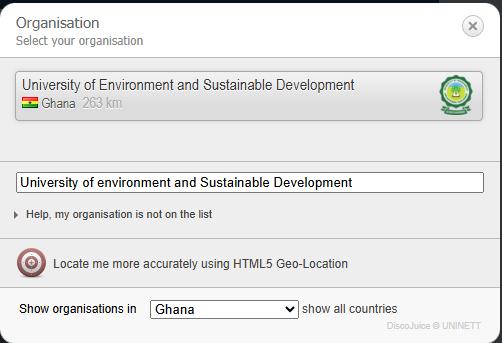
On the Right-top part of the screen, a new window appears. Type the full name of the university, “University of Environment and Sustainable Development” The university name will appear with the university logo. Click on the university name to start the download of the eduroam installer to your download folder

Go to your Downloads folder and locate the installer file “eduroam-W10-UESD- EDUROAM.exe”. Right-click on the installer file, select “Run as administrator” to install the eduroam CAT.

A setup wizard will launch, showing the university name, logo (UESD) and digital signature. Click on Next to Continue
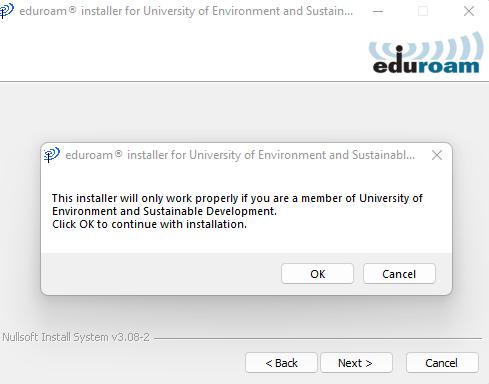
On the prompt “the installer will only work properly if you are a member of the University Environment and Sustainable Development. Click on “ok” to continue
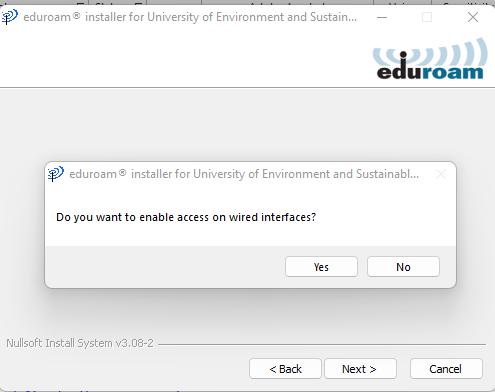
On prompt “Do you want to enable access on wired interfaces? Click “Yes” to continue.
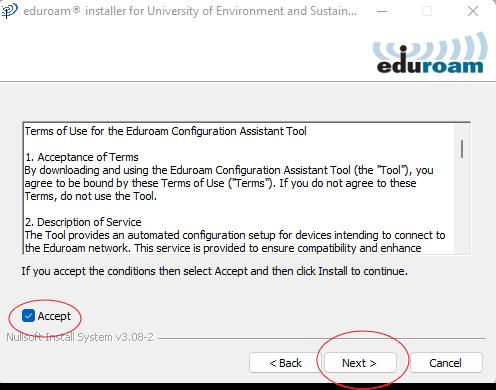
Select the checkbox to accept the terms of use for the eduroam Configuration Assistant tool (CAT) and click Next to continue.
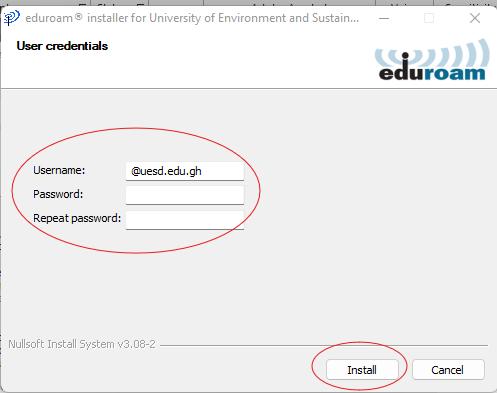
Enter your username (username@uesd.edu.gh) followed by the password in the fields provided. Click on Install to continue
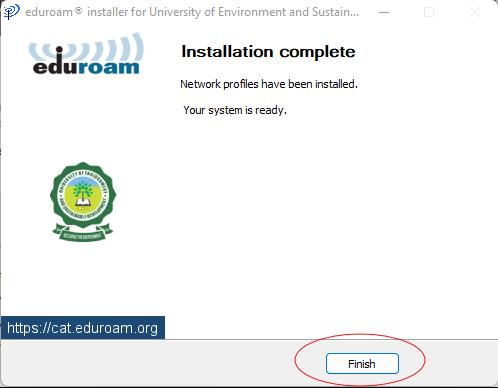
Once the installation is completed, click on Finish. Your eduroam SSID will automatically connect. Check the system tray for action required. Click to auto-connect. Enjoy.